
Explore what your business can do
All the POS features you need to run your business, on one page: checkout, payments, operations, customers, orders and kitchen, hardware, customization, and support.
Checkout
Everything that happens at the counter: building the order, taking the payment, handing over the receipt, and keeping the line moving when the internet does not cooperate.
Fast checkout
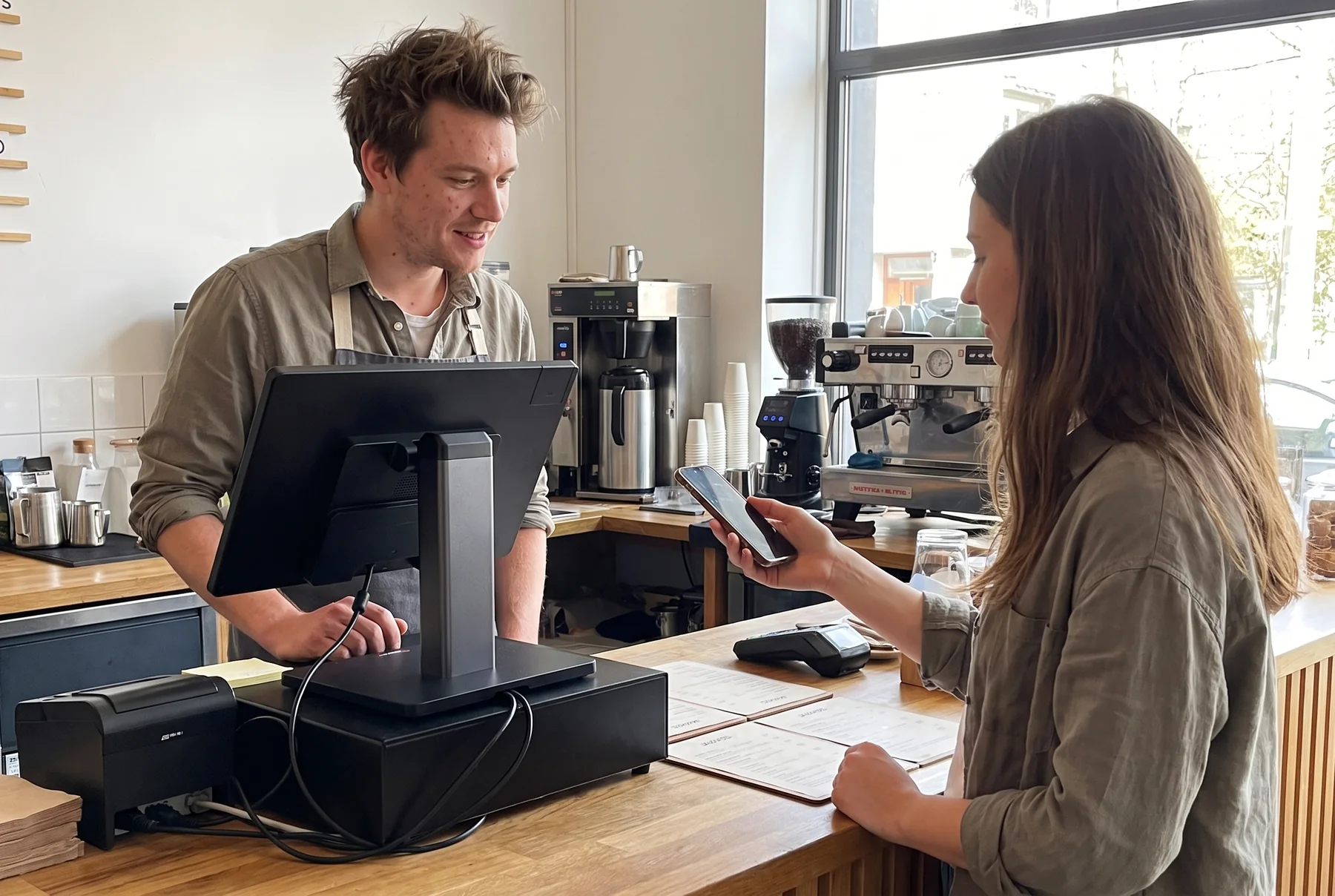
Tap, search, or scan the items, take the card, print or send the receipt. One screen, no switching between tools, and the sale lands in inventory and reports on its own.
Included in all plans.Compare plans
Build the order
Tap items from color-coded categories, or scan them. Modifiers, quantities, and discounts are applied on the same screen.
Find anything fast
Search by name, tap a category, or scan a barcode. Large catalogs stay quick because staff never scroll through a list.
Take the payment
Card, contactless tap-to-pay, or cash. The total goes to the payment device and the result comes straight back to the sale.
Hand over the receipt
Print it at the counter, or email the order to a customer on file. Either way it is the same record that goes into your reports.
Color-code the screen
Arrange categories and products in the colors and order your staff recognize, so the right item is one tap away.
One flow to learn
New staff learn one checkout screen, not a register, a card-reader app, and a stock spreadsheet.
Customer display
A second screen facing the customer shows each item, the running total, and the payment prompt, so nobody has to lean over the counter or ask "how much was that?"
Included in all plans.Compare plans
Items as they are rung up
Each product, quantity, and price appears on the customer side the moment staff tap or scan it.
The running total
Subtotal, tax, and total update live, so the amount on the card reader is never a surprise.
The payment prompt
When it is time to pay, the customer sees the total and taps, inserts, or swipes on their side.
Fewer disputes
Customers catch a wrong item or quantity before paying, not after the receipt prints.
Built into the SR155 Duo
The dual-display SR155 Duo terminal has the customer screen built in; other setups add a separate display.
See the SR155 DuoPart of the same POS
No separate app or license. The customer display is driven by the same checkout screen your staff use.
Offline mode
Wi-Fi drops, the router reboots, the provider has an outage. Slimrate keeps checkout running on the terminal, and syncs everything when the connection comes back.
Ring up sales
The checkout screen, your products, and your prices are on the terminal, so staff keep serving.
Cash and receipts
Cash sales and printed receipts work as normal; the drawer still opens.
Automatic sync
Sales made offline are stored on the terminal and sent to your account as soon as the connection returns.
Card payments
Card and contactless payments need a connection to the processor. During setup we confirm exactly what your payment device does when the internet drops.
Reports catch up
Once synced, offline sales appear in your reports and stock levels like any other sale.
Payments
Card and contactless payments through Slimrate, so the payment is part of the sale, not a separate device. Gift cards are sold and redeemed at the same register.
Payment processing
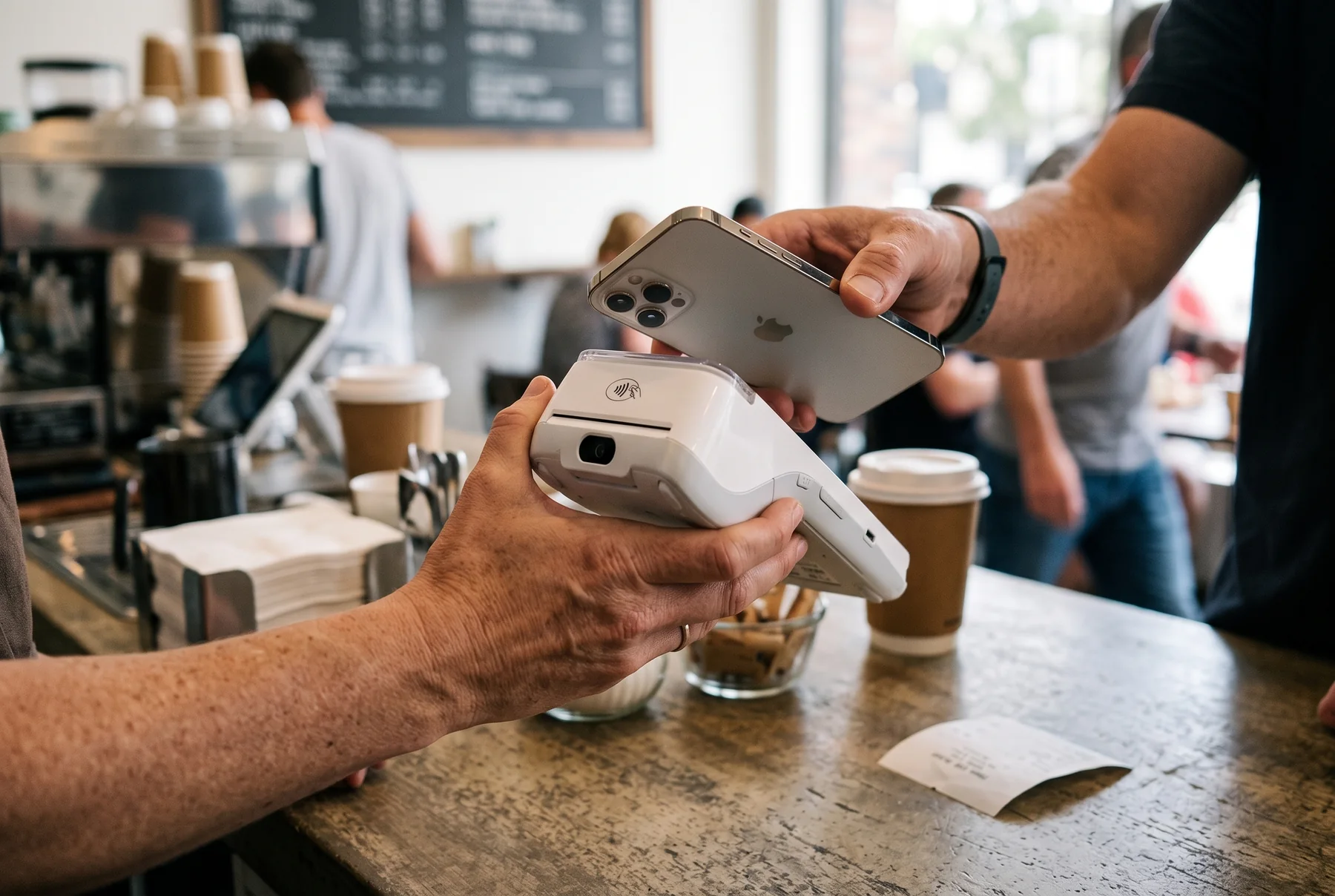
Accept cards and contactless payments through Slimrate. The total goes from the checkout screen to the payment device, and the result comes straight back to the sale.
Included in all plans.Compare plans
Explore Payment ProcessingCards and contactless
Credit and debit cards, and tap-to-pay, on a PAX or Dejavoo payment terminal connected to your register.
One record per sale
Items, payment, tip, and receipt are stored together, so reports and reconciliation just work.
Faster at the counter
Staff tap Pay and the total appears on the payment device. No typing the amount twice, no wrong totals.
Payment reports built in
Card, cash, and wallet totals by day, staff member, and location, next to the sales they belong to.
Devices from our catalog
The A35 at the counter or the portable A920 for tableside and mobile payments, connected to your Slimrate terminal.
See payment terminals
Gift cards
Sell a gift card like any other item, accept it like any other payment, and see the balance and activity in your POS. No side system, no spreadsheet of card numbers.
Sell at checkout
Gift cards are an item on the checkout screen. Staff pick the amount, the customer pays, and the card is active.
Redeem as payment
At checkout, gift card is a payment option next to card and cash. Partial redemption leaves the rest on the card.
Balances and activity
Look up any card balance from the POS and see gift-card sales and redemptions in your reports.
Any amount
Fixed denominations or a custom amount typed at the counter, whichever your business prefers.
Numbered card series
Slimrate issues your physical cards in numbered series, with an optional PIN. Staff enter the card number at the register to activate, check, or redeem it.
Operations
Inventory, reporting, and staff, built from what the counter rings up. No exports, no re-typing, no second app to keep in sync.
Inventory management
Every sale at the counter updates your stock. See what is on hand, adjust counts, and see what sells best, without a separate inventory app.
Included in all plans; advanced inventory tools in Premium and Custom.Compare plans
Stock levels
Current quantity on hand for every product, updated with each sale.
Stock adjustments
Count, correct, and update quantities from the admin panel; the register sees the new number right away.
Top sellers
What is moving fastest this week, so you stock more of what sells and less of what sits.
Item sales over time
How each product sold this week, this month, or any range you choose, from the item sales report.
Recipes and ingredients
Link ingredients to a dish or a modifier, and each sale takes the right amounts out of stock.
Scanners, scales, and labels
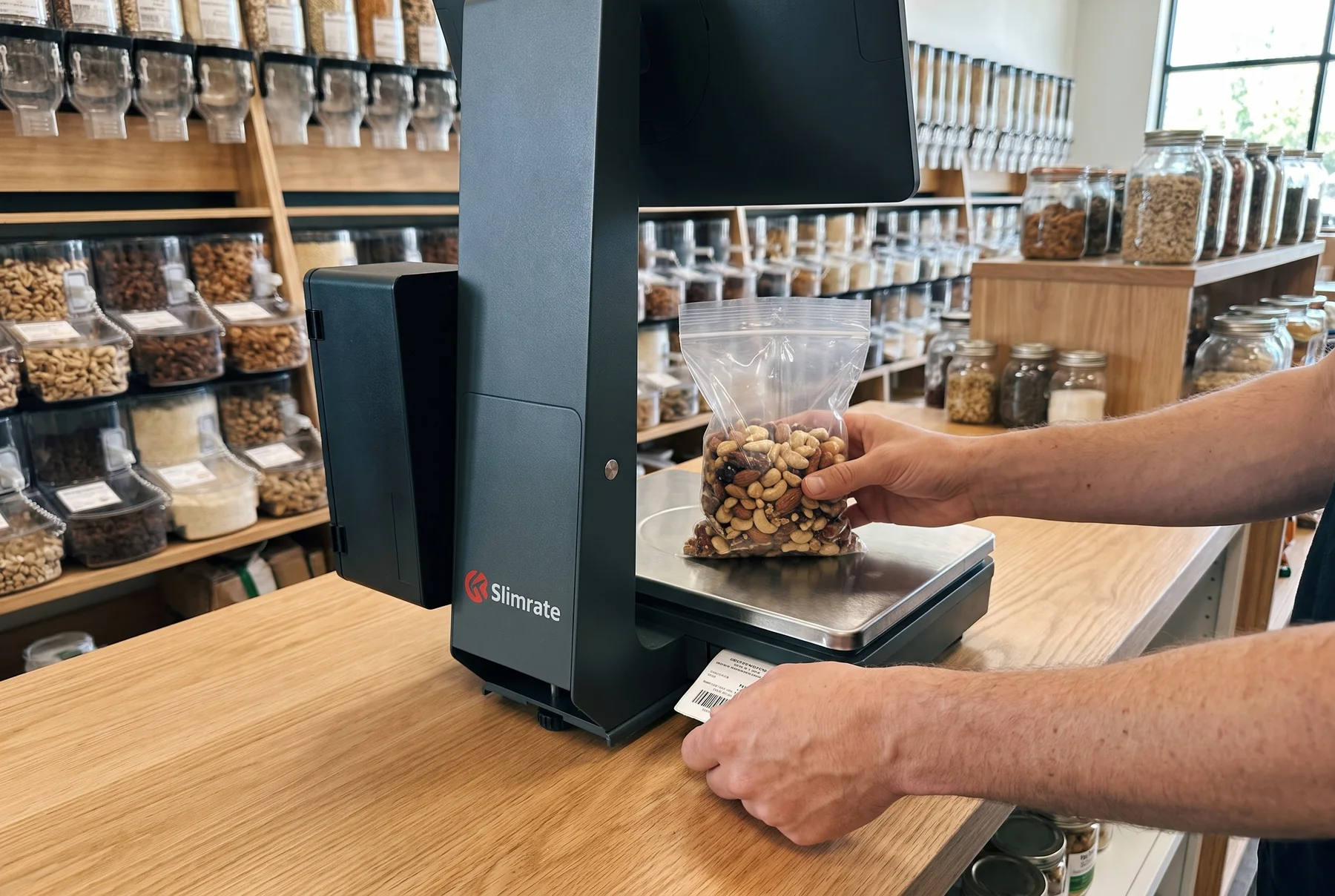
Barcode scanners, scales, and label printers from the Slimrate catalog plug straight into the inventory workflow.
Explore Hardware
Reporting and analytics
Every sale your POS rings up becomes a report: today’s revenue, what sold, when you were busiest, who was working, and how you were paid.
Included in all plans; custom analytics dashboards in Premium and Custom.Compare plans
Sales and revenue
Revenue, number of orders, and average ticket by day, week, or any range you choose.
Top items
The products and menu items that bring in the most sales, and the ones that barely move.
Peak hours
Sales by hour, day, week, or month, so you know when to add staff and when to prep.
Staff activity
Sales, tips, refunds, and hours worked per employee, from the logins and shifts in employee management.
Tips, taxes, discounts, refunds
A separate report for each, so end-of-month questions have an answer, plus a daily summary emailed to you.
Payment methods
Card, cash, and other tenders by day, with a card-network breakdown on the register’s daily report.
Employee management
Give each staff member their own login, decide what they can and cannot do at the register, and see sales and hours per employee in your reports.
Included in Premium and Custom.Compare plans
Individual logins
Each employee signs in with their own PIN, so every sale, refund, and drawer open is tied to a person.
Roles and permissions
Cashiers ring up sales; refunds, discounts, voids, and cash adjustments are limited to the roles you allow.
Shifts and hours
Staff clock in and out on the terminal, and you see hours worked alongside what was sold.
Sales per employee
See who closed the most sales, the average ticket per person, and tips earned.
Refunds, comps, and voids by employee
Each one carries a reason code and the employee who did it, so you see patterns early.
Operations from your phone
The Slimrate Business app shows the same sales, stock, and staff data as your POS, live, wherever you are.
Explore Mobile AppSales as they happen
Today's revenue, number of orders, and top items, updated as the counter rings up sales.
Stock at a glance
Current quantities per product, and a count you can update from your phone.
Orders in detail
Open any order and see its items and payments, wherever you are.
Customers
Attach a customer to the sale at checkout, and Slimrate keeps the rest: purchase history, points earned, rewards redeemed, and the promotions that bring them back.
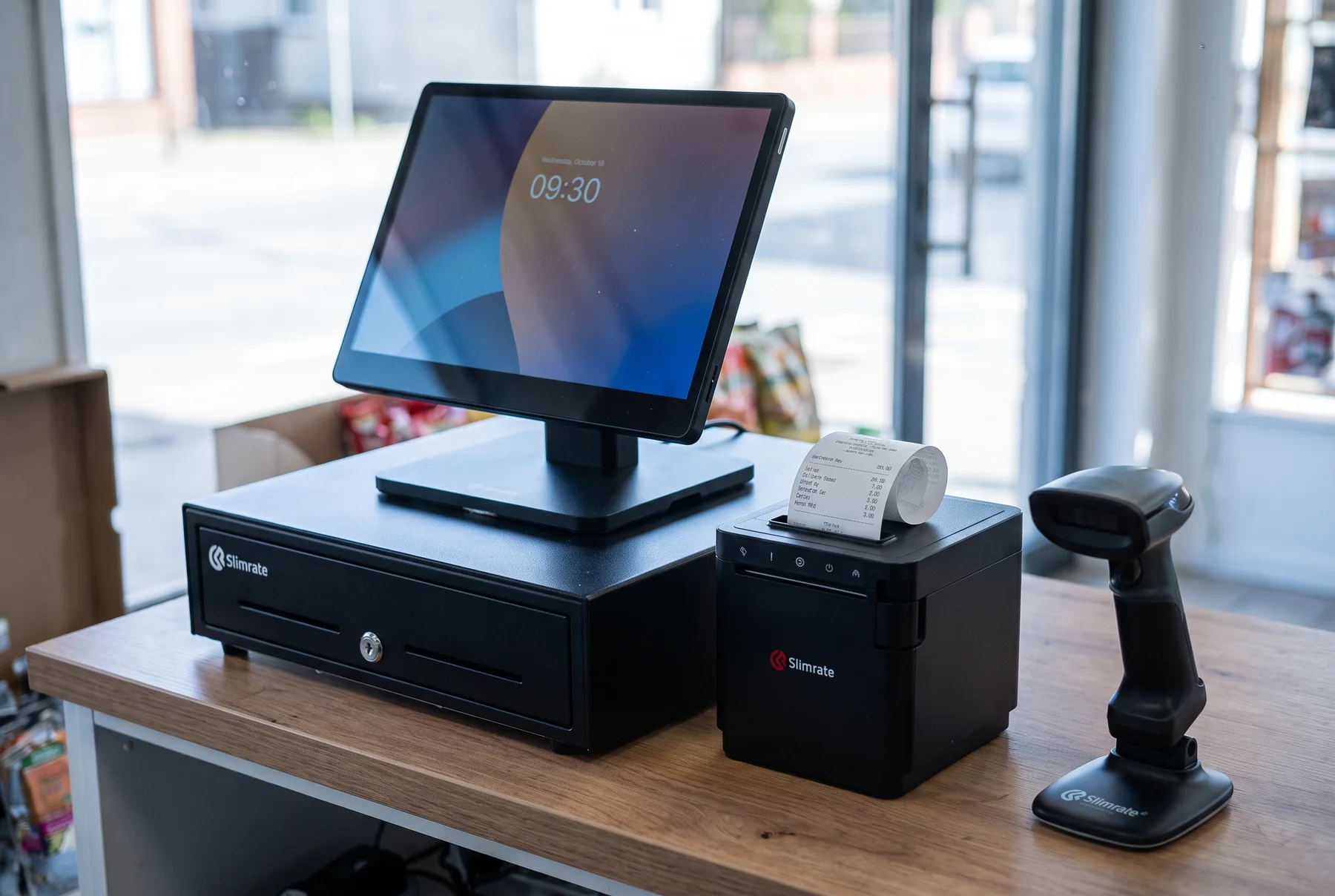
Loyalty and CRM
Customer tools built into checkout, not bolted on next to it.
Included in Premium and Custom.Compare plans
Customer profiles
Name, contact details, and every purchase in one place, added at the counter in seconds.
Points and rewards
Customers earn points on every sale and spend them as a discount at checkout; you set how points are earned and what they are worth.
Automatic discounts
Buy-one-get-one, quantity deals, and category offers, scheduled by day and date and applied at checkout without staff remembering them.
Purchase history
Open a customer’s profile to see how often they visit and jump straight to their orders.
Customer discount
A standing percentage for a regular or a wholesale buyer, applied whenever they are on the sale.
Orders and kitchen
Online orders land in Slimrate with the rest of your sales, and every order goes from the counter to the kitchen printers with its modifiers and notes.
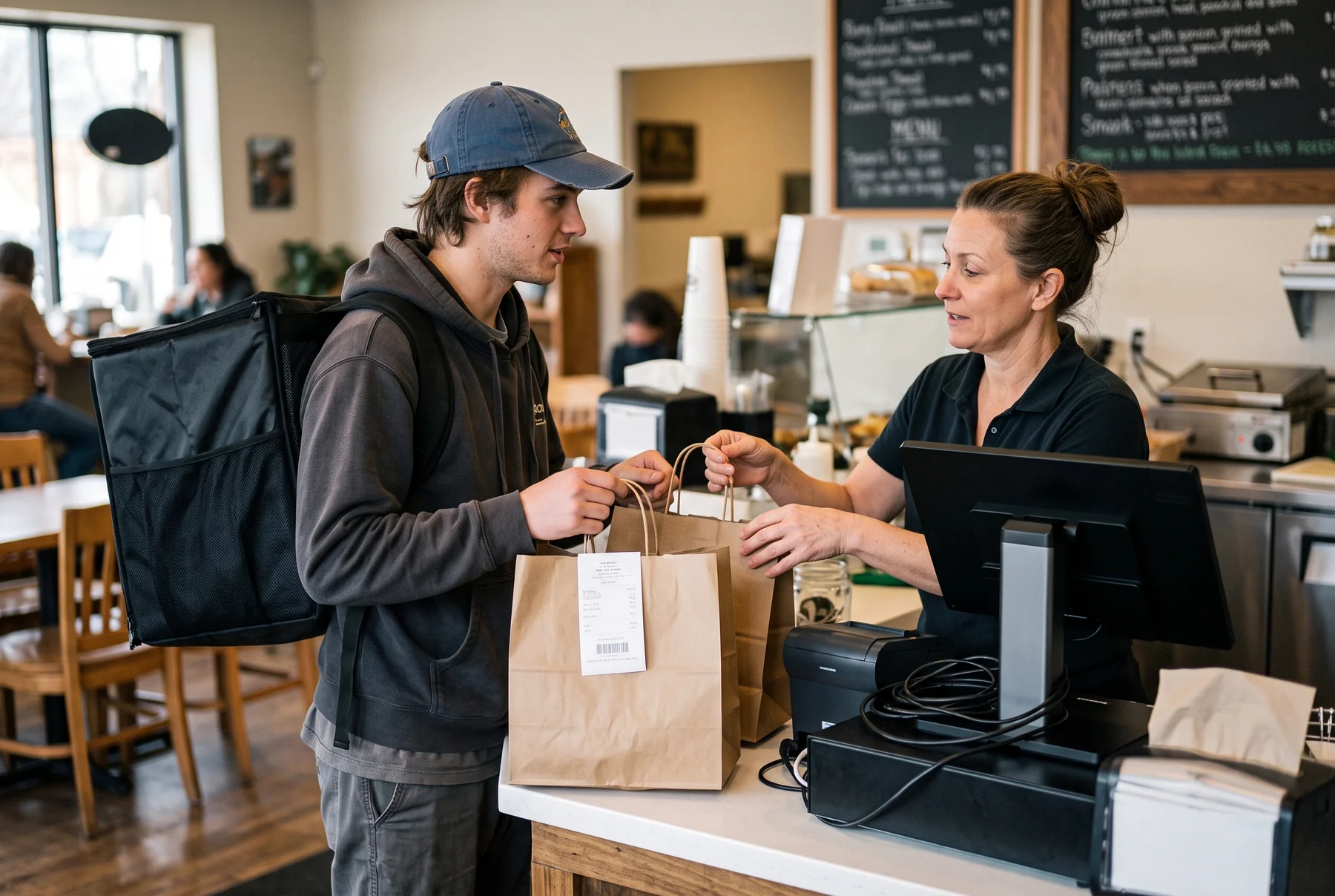
Online ordering
Orders from your online channel land in Slimrate with the rest of your sales: same products, same stock, same reports.
Connected channels
A WooCommerce store or a Bottlecapps app sends its orders straight into Slimrate.
One product catalog
Choose which items show online, and change a price or a name once for both channels.
Shared stock
An item sold online comes out of the same stock as one sold at the register.
Payments recorded
The online payment is recorded on the order, next to your counter sales, not on a separate statement.
Every order in one place
Online and in-store orders sit together in your admin panel and in your reports.
Selling online and in person?
See how stores that sell both ways run on Slimrate.
Explore E-Commerce POS
Kitchen tickets
When staff send an order from the counter or the table, it prints in the kitchen with every modifier and note. Each station gets only its own items.
Instant routing
The ticket prints in the kitchen the moment the order is sent. No runner, no re-typing.
Every modifier, clearly
No onions, extra sauce, allergy notes: modifiers and notes are on the ticket in full.
Stations
Drinks to the bar printer, food to the line. Each printer gets only the categories you assign to it.
Fire what is new
Add items to an open order and fire again; only the new items print.
Table and server on the ticket
Each ticket carries the table, the server, the customer name, and the time it was sent.
Kitchen-ready printers
Receipt and kitchen printers from the Slimrate catalog, supplied and installed by Slimrate.
See printers
POS hardware
Terminals, customer displays, payment devices, printers, scanners, drawers, and scales from our own catalog, chosen for your counter and installed by Slimrate.
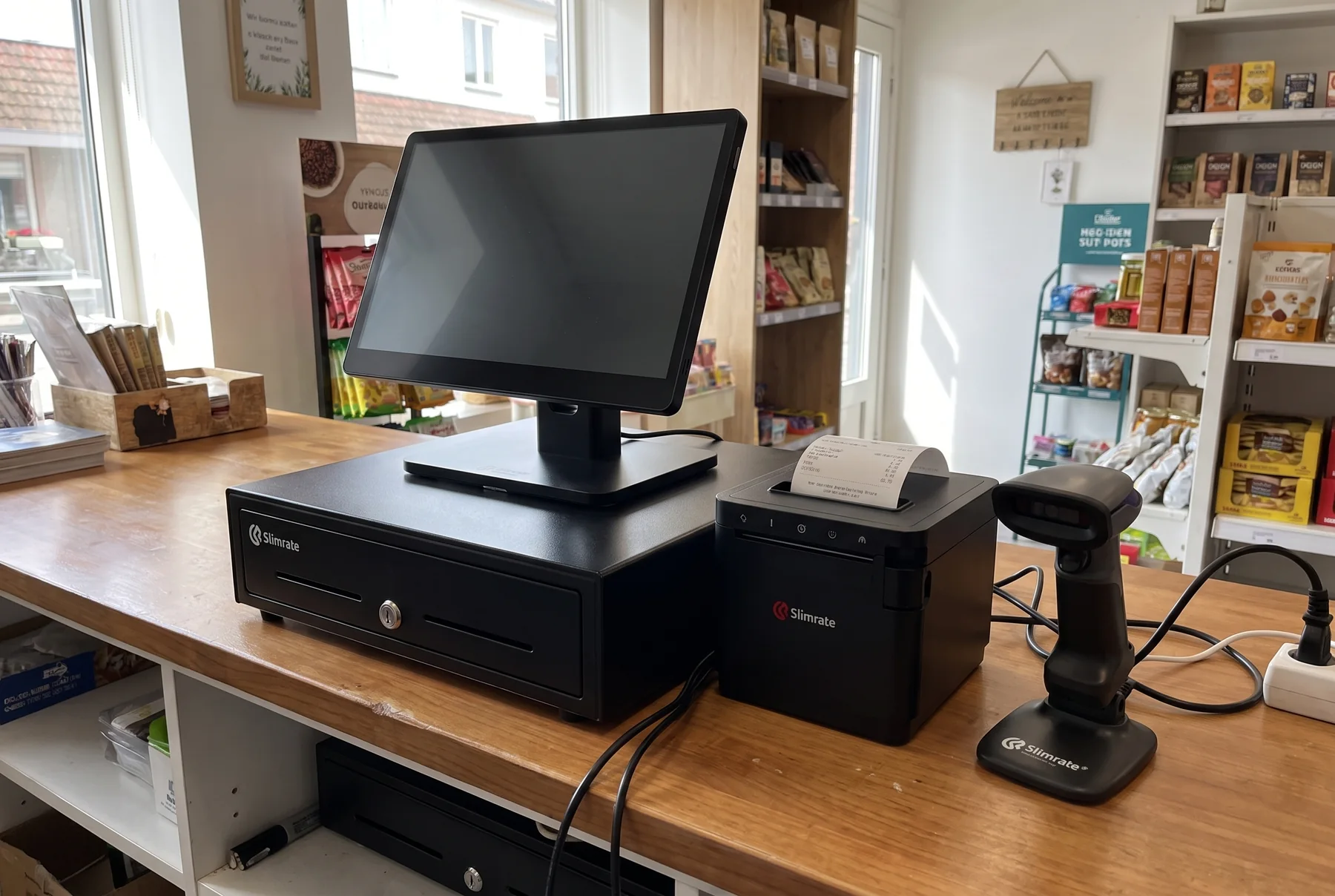
From the Slimrate catalog
Every device in the catalog runs with the Slimrate software and is set up by Slimrate as part of your installation.
Explore POS HardwarePOS terminals
Touchscreen terminals for the counter, in single-screen and dual-screen models.
See POS terminalsCustomer displays
The dual-display SR155 Duo has the customer-facing screen built in, so items and the total show on both sides of the counter.
See the SR155 DuoPayment terminals
The A35 at the counter and the portable A920 for tableside and mobile payments.
See payment terminalsReceipt printers
Thermal printers for receipts at the counter and tickets at the kitchen pass.
See receipt printersBarcode scanners
Handheld and wireless scanners for fast lookup at checkout and stock counts in the back.
See barcode scannersCash drawers
Drawers that open from the POS when a cash sale closes.
See cash drawersScales
Digital and label-printing scales for produce, deli, and anything sold by weight.
See scales
Customization
Most of what makes a POS feel like yours is configuration: the checkout layout, the categories, who can do what, what the receipt says. When your business needs something the settings cannot do, our development team can build it.
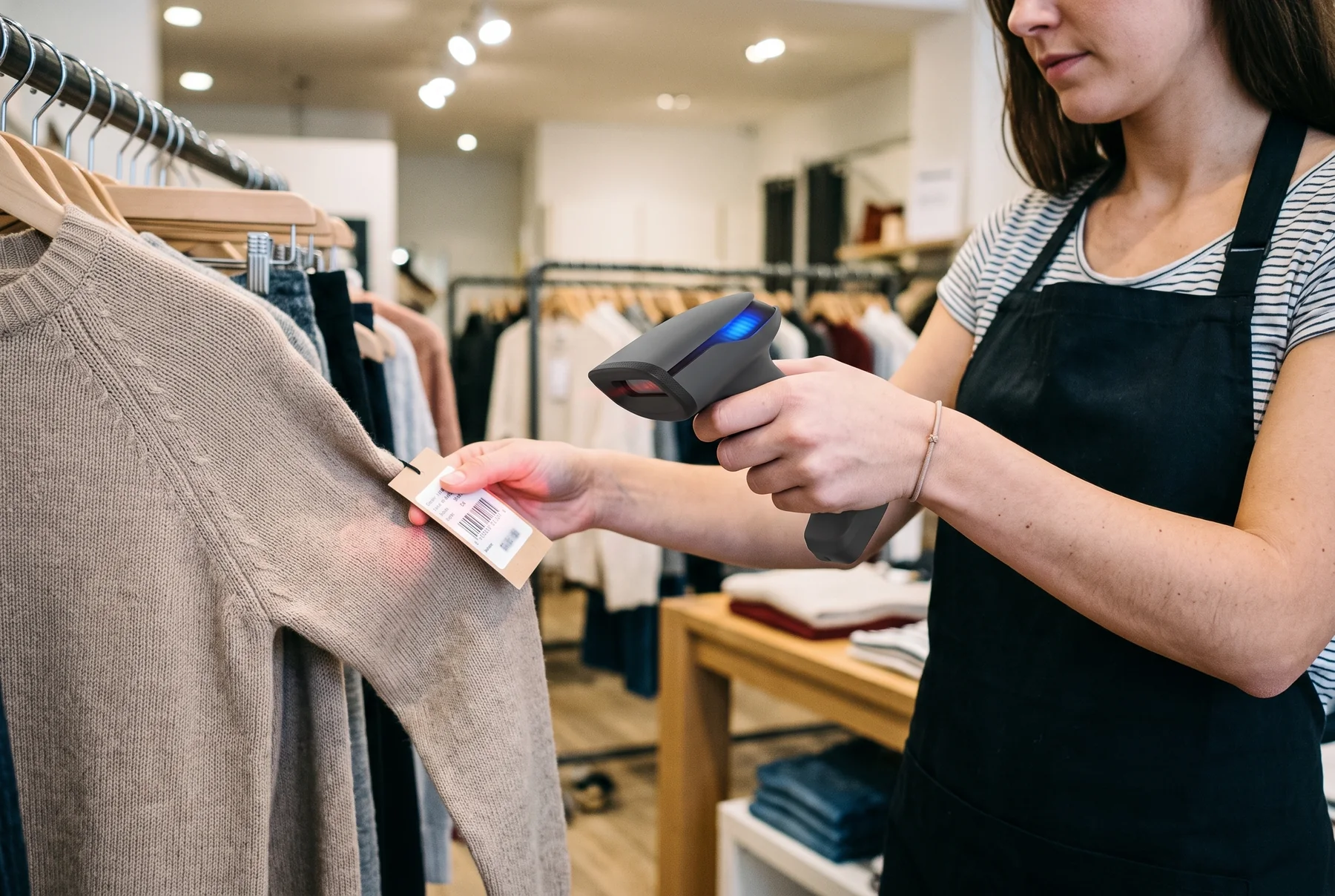
What we configure for you
Set up during onboarding, adjusted whenever your business changes.
Checkout layout
Which categories each register shows and in what order, and the colors of categories and items, arranged the way your staff work.
Products and menus
Your catalog imported from a spreadsheet and organized, with modifiers, bulk prices, and tax rules.
Roles and permissions
Who can ring up sales, who can approve refunds and discounts, and who sees reports.
Receipts
Your logo, business details, and the message at the bottom of printed, email, and text receipts.
When settings are not enough
Tell us how you work. We will tell you which part is a setting, which part is custom work, and what both would cost.
Custom development is part of the Custom plan.Compare plans
Discuss customizationTell us how you work
Products, orders, staff, locations, reports, and the one thing every other POS got wrong for you.
We sort it into settings and custom work
Most requests are configuration we do during setup. The rest we scope as custom development with a clear estimate.
You see it before you commit
The configured setup and any custom work are written down, priced, and agreed before anything is built.
Development-hour credits
Eligible customers can receive up to $2,000 in customization credits toward development-team hours on approved custom work. Eligibility and credit amounts are confirmed in your agreement.
Setup, training, and support
A POS is only useful when it is running. Slimrate helps you plan the setup, get the hardware and payments working, train the people who will use it, and answer the questions that come up once you are live.

What we help with
Real people who set you up, train your team, and stay on call.
Support in all plans; priority support and a dedicated account manager in Premium and Custom.Compare plans
Open SupportSetup and onboarding
Planning the POS, importing your products and menu, setting up users and locations, and getting you to a working first day.
Hardware
Choosing, installing, and troubleshooting terminals, customer displays, payment devices, printers, drawers, and scanners.
Payments
Connecting payment processing to your POS, setting up payment devices, and answering questions about transactions and receipts.
Team training
Hands-on training for owners, managers, and staff, plus video guides your team can come back to any time.
Switching from another POS
We map what you have today, products, customers, hardware, and payments, and plan the move so you are not running two systems longer than needed.
Day-to-day questions
Something not working, a setting you cannot find, or a how-do-I question: send a support request and the team will pick it up.
See how it fits your business
The same features, set up around the way a store, a restaurant, or an online shop actually works.
Ready to see how Slimrate fits your business?
Tell us how you sell, and we'll put together the software, hardware, and payment setup that fits, with a clear price.